 Fluentix
Teach with the
whole toolkit.
Everything on this page is made for teachers: build classes, assign practice, grade at your own rigor, and test with your choice of proctoring — while every final decision stays yours. No grade is ever published without a teacher approving it.

Try it with your students first
The honest way to judge Fluentix is in a real lesson: one class, one assignment, and see how it feels before you rely on it. If you have some choice in the matter, that trial is worth more than any promise on this page — and qualifying schools get a free pilot period.
One login for every class you teach
Create a class in about a minute, give students one join code, and assign a mixture in the same place: tutor practice, short writing tasks, and reading at the level you choose. When you assign practice, you pick the tutor, the scene, the topic, how long it runs, and what students hand in.
- Join codes — no student emails needed
- Assign tutor practice and writing
- Rosters by CSV import
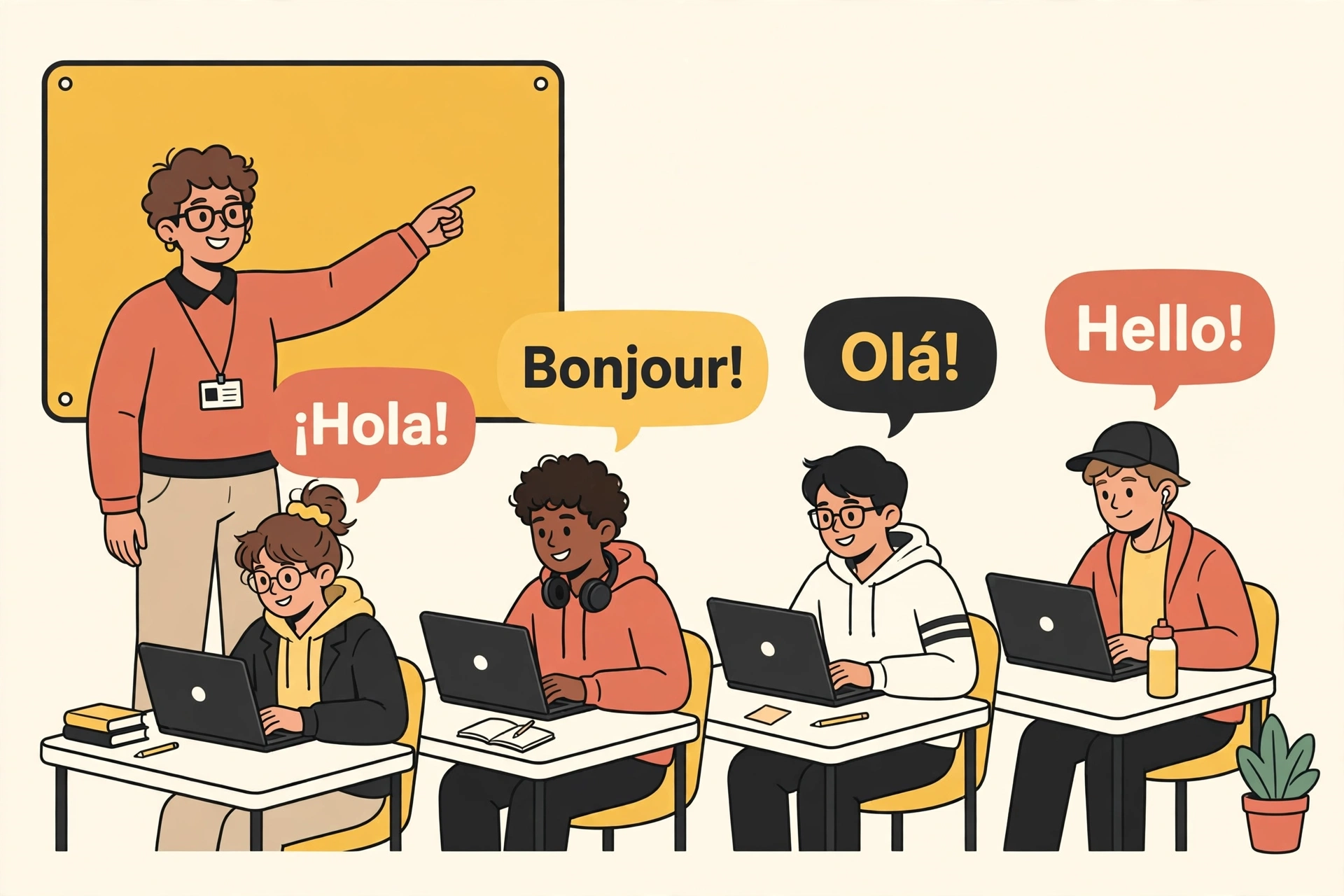
How assigning practice works
- Create a class. Name it, such as Spanish 1, period 2.
- Share the join code. Display it or copy it; students enter the code to join and appear on your roster. Use the projected view in class — it hides student names with one tap.
- Assign practice. Choose the tutor, the photorealistic scene, the topic, the time, and what students should hand in.
- Review and grade. Student work comes back to you, and Grader marks it only after you approve.
Setting up your classes In preview
Class accounts are not open in this version yet — nothing below creates an account today. These are the exact steps from the working preview build, shown step for step so you can judge the setup before it opens.
- Open “Your classes”. It is the first panel in Classroom.
- Name the class and choose its subject and language, such as Spanish 1 — Period 2.
- Tap “Create class”. The class appears as a card with its join code printed on it, ready to share.
- Students enter the join code under “Join class” while signed in; each student who joins appears in “View roster”.
- Export a CSV from your school system — a OneRoster users or enrollments file, or a simple file of names, emails, and roles; templates are offered in the panel.
- Choose the file and tap “Preview import”. Nothing is saved yet; the preview shows what would be added, class by class.
- Read the preview. Rows that need attention are named, so a bad line can never silently join the wrong class.
- Tap “Save import” to save the valid rows. Students are matched by email when they join or sign in; the import never creates an account for a student.

Feedback in minutes — at your rigor
Upload a photo of written work and get a rubric-based draft with the errors marked and explained, ready for you to approve or adjust. You set how strict Grader is, from 0 to 100 — gentle for beginners, exam-strict for advanced classes — and paper reaches Grader from a phone photo, a PDF, or one video swept across a whole batch.
- Rigor 0–100, per class or per assignment
- Every AI score waits for your approval
- Low-confidence pages are flagged, never guessed
Set the rigor in three steps
- Drag the slider to the number that fits this class — or tap a preset: 0 No rigor, 25 Gentle, 50 Standard, 75 Strict, 100 Advanced.
- Read the sample answer again. The score marker and the marked-up answer update on the spot, so you can see exactly what the new setting does.
- Your choice is saved on this device and applied to the marks this Grader suggests — and every final grade remains yours to approve.
Built for the rest of the job
Grade a whole batch from one video Demo
Film one video swept across a whole class set of papers and the finished product separates it per student and grades it as a batch — built for schools that have no scanner, where a phone camera is enough. Blank pages are reported as blank, and pages the scan is unsure about are flagged for you, never silently mis-graded.
Try the scan demo →Camera proctoring — your option Preview demo
An autonomous camera check during tests that flags moments for your review — a second face, a phone, a student gone from the frame. It is your choice per test and off by default, and a flag is never an automatic punishment. Preview demo only: it launches only after counsel and privacy review, and a non-camera path always exists.
See the proctoring demo →Teacher Assistant On the roadmap
Not built yet. Next on the roadmap: help with the planning side of teaching — draft lesson plans, draft rubrics, and draft parent messages built from your class’s real work, always as drafts you review and send yourself. Nothing is ever auto-sent. Today, Classroom covers assigning and Grader covers feedback.
See what Classroom covers today →